June 16, 2026
Updated on
August 31, 2026
Website Accessibility Testing: Tools + 7 Manual Checks
You're aware of the BFSG, Chrome DevTools is open, and now you're asking yourself: How do I find out if my website is truly accessible?


Table of contents
You're aware of the BFSG, Chrome DevTools is open – and now you're asking yourself: How do I find out if my website is truly accessible? The honest answer: There are three approaches, and none is sufficient on its own. Automated tools like WAVE or Lighthouse offer a quick start. Manual checks uncover what no scanner can see. And a professional accessibility audit provides the structured assessment according to EN 301 549 and WCAG 2.1 AA that you need for true legal compliance.
The BFSG has been in effect since June 2025. Anyone interested in the legal details (who is affected, what fines are threatened, where the micro-enterprise exception applies) can find everything in our detailed BFSG article. This article focuses on testing.
Quick Test with Free Tools
The following tools are free, ready to use immediately, and together represent a solid first step to test your website's accessibility. Each has a different focus.
WAVE
WAVE is a browser extension from WebAIM. It overlays colored icons directly onto your page: red for errors, yellow for warnings, green for recognized structural elements. It's ideal for getting started because you don't need to open a DevTools window and you see the issues where they occur.
Lighthouse
Lighthouse is built into Chrome DevTools (F12, "Lighthouse" tab). It provides an accessibility score from 0 to 100 and internally uses the axe-core engine. It's convenient for developers who already work in DevTools. However, the score can lead to a dangerous misconception, which we'll discuss further shortly.
axe DevTools
axe DevTools is also a browser extension. It offers higher precision than WAVE, fewer false positives, and provides a concrete fix suggestion with WCAG reference for each finding. It's the best choice for structured developer diagnostics.
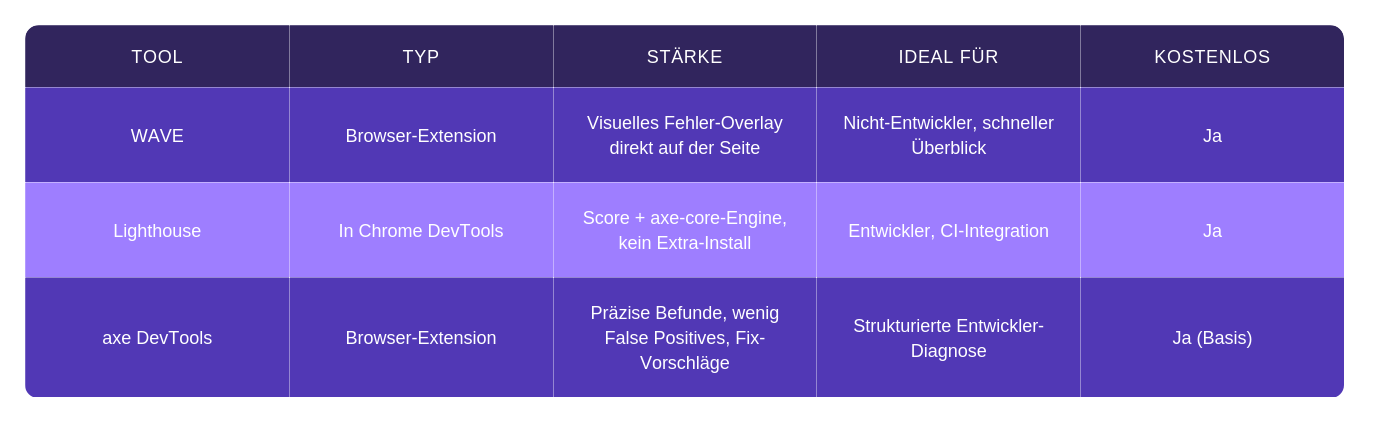
Where to start? Open WAVE on your homepage for an initial visual overview. Then use axe DevTools for a detailed diagnosis. So far, so good.
Before you get too excited, here's the most important takeaway from this article: The UK Government Digital Service (GDS) deliberately built 142 known accessibility issues into a test page and ran 13 automated tools against it. The best tool found 40% of the issues. Independent studies by Deque, WebAIM, and TPGi have confirmed this figure for over a decade: Automated tools cover approximately 30 to 40% of WCAG success criteria.
A Lighthouse score of 100 means no automatically detectable errors. It says nothing about the remaining 60 to 70%.
Manual Review: The 7 Most Important Checks
These seven tests don't require special software and can be done in under an hour. They cover precisely the most common and severe barriers where automated tools fail.
- Keyboard Navigation: Put your mouse aside. Navigate the page using only Tab, Shift+Tab, Enter, and the arrow keys. Does every button, link, and dropdown work? If you get stuck anywhere, that's a critical WCAG violation.
- Focus Visibility: While navigating with the keyboard: Can you always see which element is currently active? The focus outline must be clearly visible - even if your CSS overrides the default styles. Many teams remove
outline: nonefor aesthetic reasons and don't realize they are creating a barrier. - Zoom to 200%: Zoom your browser to 200% (Ctrl/Cmd + Plus). Does the layout break? Are texts cut off? Do elements overlap? All functions must remain usable. WCAG 2.1 AA requires this.
- Contrast Check: Text contrast at least 4.5:1 for normal text, 3:1 for large text (18pt or 14pt bold and larger). Use WebAIM's Contrast Checker or the integrated WAVE check. Particularly critical: light text on images and placeholder text in form fields.
- Spot Check Alt Text: Right-click on images and select "Inspect Element" or use WAVE. Missing alt text is a WCAG violation. Generic text like "image," "image.jpg," or "DSC_0042" are also violations - because they convey no content.
- Form Error Messages: Intentionally fill out a form incorrectly. Are the error messages understandable? Are they visually and programmatically linked to the correct input field? An error message at the bottom of the page that doesn't scroll to the field helps no one. Clear error messages are one of those UX quick wins that pay off immediately, accessibility aside.
- Video Subtitles: Do all videos have subtitles or at least a transcript? Does a video autoplay with sound without users being able to mute it? Both are violations that many teams overlook.
Beginner's Screenreader Test
A screen reader reads your page the way blind users experience it. Two free options are available: NVDA for Windows (Download required) and VoiceOver on Mac (built-in - Cmd+F5 activates it).
The honest assessment: Without practice, it's difficult to judge whether the read-aloud result is actually correct. Screen readers have their own navigation logic, keyboard shortcuts, and announcement patterns. You'll likely have more questions than answers on your first attempt. That's normal.
Nevertheless, two specific starting points can help:
- Heading Navigation: In NVDA, press the H key to jump from heading to heading. Does the order make sense? Are levels missing (e.g., H2 directly after H4)?
- Form Mode: Navigate into a form and check if the screen reader reads the labels correctly. An "editable field" without a label is a classic warning sign.
The picture only becomes reliable with a usability test involving real users from the group actually affected.
What a professional accessibility audit also checks
An accessibility audit is a structured, standard-compliant audit of your website according to EN 301 549 or WCAG 2.1 AA. It combines automated scans, manual tests, and evaluation by experienced auditors.
Overview of the three audit levels:
- Automated (Tools) - Covers approximately 30 to 40% of WCAG criteria. Fast, repeatable, good for regression testing.
- Manual self-assessment (the 7 checks) - Catches the most obvious problems that tools miss. Depends on your experience.
- Expert Audit - Uncovers what the other two levels cannot.
What only an audit finds - and this is the crucial point:
- Semantic Structural Errors: A heading hierarchy can be formally correct in the code but still make no sense in the context of the page. Tools see code. Experts see meaning.
- ARIA Misuse: Poorly implemented ARIA is often worse than no ARIA at all. A
role="button"on adiv, which has no keyboard events, creates a barrier where there was none before. Tools do not report "incorrectly used" ARIA roles; they only see that they are present. - Logical Reading Order: Visually, a layout can appear perfect, yet be chaotic for screen readers because the DOM order deviates from the visual presentation.
- Cognitive Barriers: Unclear language, overly complex forms, lack of navigation aids. No scanner measures cognitive load.
- PDF Documents: Tagged PDFs are a separate area for testing. Most accessibility tools completely ignore PDFs, which is why many companies have the most serious violations precisely in this area.
-
How a full audit process is structured, from scope through to the action plan, is laid out in our UX Audit Guide. The expert level works to the same principles as a heuristic evaluation. And the review turns out particularly strict in regulated fields such as healthcare.
Anyone who has recognized the limitations of self-tests and needs to ensure BFSG compliance requires this third level. In a professional accessibility audit we systematically evaluate all three levels and provide a prioritized action plan.
Overlay Widgets: What they can and cannot do
Providers like AccessiBe or UserWay promise "1-click accessibility" via JavaScript widgets. The idea: embed a script on the page, and the compliance issue is resolved.
The reality is different. The European Commission has clarified that overlays are not an acceptable solution for accessibility problems: "Overlays, or any other tools which do not ensure the website itself meets the detailed criteria of the standard, are not an appropriate solution. It is best to fix accessibility issues at their source."
The reason is logical: No automated tool covers all WCAG 2.1 Level A and AA criteria. A widget that sits on top of the code cannot fix the code itself. If your keyboard navigation doesn't work, an overlay won't change that.
Furthermore: The EU Commission has found that some overlay tools can conflict with the assistive technologies used by people with disabilities – thereby making the website less accessible. Users who use NVDA or VoiceOver have configured their tools over years. A widget that injects ARIA labels or renames controls without prompting disrupts this established configuration.
If you are already using an overlay: Remove it and instead start a real test with the tools and checks from this article.
Prioritize findings: critical vs. cosmetic
After testing, you will have a list of findings. Then the question is: Where to start? The answer lies in distinguishing between findings that block usage and those that represent best practice deviations.
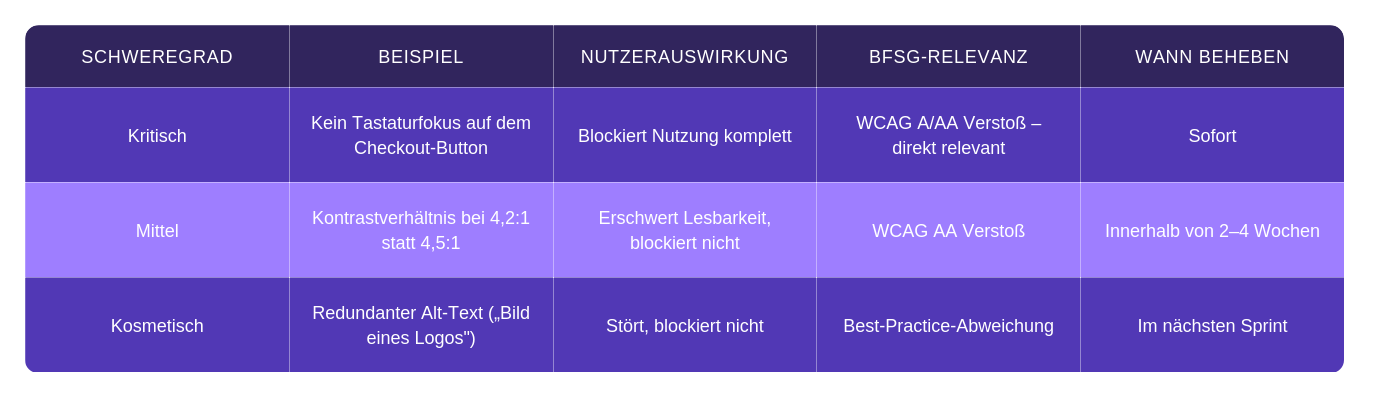
The logic behind this: Critical findings are WCAG violations of Level A or AA that completely prevent usage. Medium ones hinder but do not block. Cosmetic ones are deviations from best practices without direct compliance relevance.
An example from our audit practice: In an e-commerce audit, we found 3 critical findings - including a non-focusable 'Buy' button and missing form labels in the checkout - which were resolved within a day. Alongside these were 40 cosmetic findings that had no BFSG relevance. The priority was immediately clear.
Solving contrasts and focus styles once, centrally in the design system, stops the same findings from coming back with every release.
BFSG Context in Three Sentences
The Accessibility Strengthening Act (BFSG) has been in effect since June 28, 2025. The technical standard is WCAG 2.1 Level AA according to EN 301 549 - and this is exactly what the tools and checks in this article examine. Violations can result in fines of up to 100,000 Euros, as well as warnings from competitors and associations.
In the public sector, BITV 2.0 adds its own deadlines and review obligations on top.
Anyone who wants to know in detail whether the BFSG applies to their company, which exceptions apply, and what enforcement will look like in 2026, can find everything in our article Accessible Website: Who will be subject to BFSG obligations in 2026.
Conclusion
Self-tests with free tools are a good start - but no substitute for a complete audit. Two concrete next steps: Install WAVE now and check your homepage. Then go through the 7 manual checks.
Anyone who then knows that the WAVE report looks clean and keyboard navigation works has a solid starting point. However, the path to legal compliance begins after that, because the remaining 60 to 70% of WCAG criteria do not check themselves.
FAQ Accessibility Testing
Is a Lighthouse score of 100 sufficient for BFSG compliance?
No. Lighthouse only checks automatically testable criteria – which account for about 30 to 40% of all WCAG requirements. The remaining 60 to 70% remain untested. A clean automated scan should never be used as proof of WCAG compliance. A score of 100 means: no detectable automated errors. It says nothing about semantic structures, screen reader compatibility, or cognitive barriers.
What is an accessibility audit?
An accessibility audit is a structured, standard-compliant review of your website according to EN 301 549 or WCAG 2.1 AA. It goes beyond automated scans and self-tests, with experienced auditors evaluating semantic structures, ARIA implementations, reading order, and cognitive barriers. The result is a prioritized action plan with concrete fix recommendations – not just a list of errors.
How often should I test my website for accessibility?
At least one full audit, ideally a professional one. After that, re-check after every major content or code update. Automated scans with Lighthouse or axe can be easily integrated into CI/CD pipelines and run with every deploy. Manual reviews and screen reader tests should be scheduled for major releases or at least quarterly.
How much does a professional accessibility audit cost?
The costs depend on the scope of the website, the number of templates, and the desired level of conformity. A single landing page is significantly less complex than a shop with 50 page types. You can find specific pricing information in our overview of UX costs.
Are overlay tools like AccessiBe an accepted solution under the BFSG?
No. The European Commission has publicly stated that accessibility overlays – whether AI-powered or not – do not constitute a valid path to WCAG compliance. Accessibility must be resolved at the source – meaning in the code itself – not through a cosmetic layer on top. Overlays can also interfere with real users' assistive technologies and ultimately make the website less accessible.